
About FreshService the ETS Help Desk Ticketing System
The District tech support ticketing system is available at https://helpdesk.fhda.edu.
This service allows ETS to create and easily adapt forms for both ETS and Lock Shop requests. It improves the formatting of requests and reduces the delay in addressing the needs of District users.
Signing In
Single Sign On Authentication
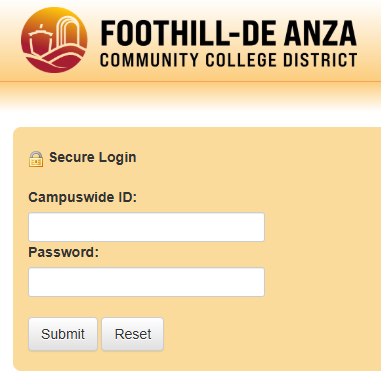
Whe you navigate to https://helpdesk.fhda.edu, you will be redirected to the FHDA SSO interface. You should be familiar with this page as it is the same used for signing into other distreict services such as MyPortal.
The Support Portal
When you finish authenticating through SSO, the FHDA Support Portal will appear. Some tiles may or may not appear, as they are dependent upon access.
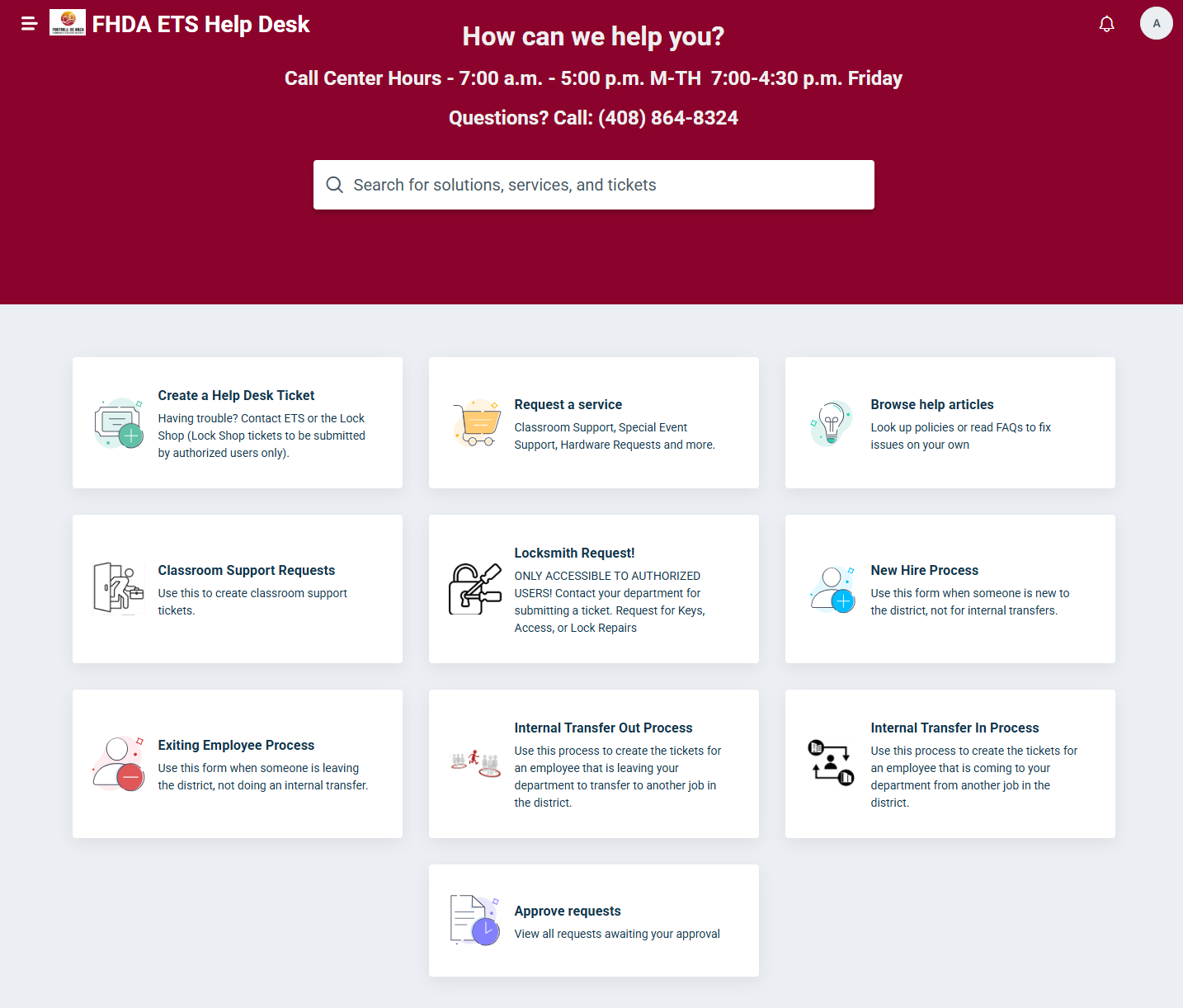
Understanding the IT Helpdesk Home Page
The primary areas you will interact with are the Create a Help Desk Ticket, Request a service, Locksmith Request, and Classroom Support Requests tiles. If you do not have permission or access, you will not see some of the tiles.
Creating a Help Ticket
Click on the Request for Assistance tile. Clicking this tile takes you to the Issue ticket creation page, the home for most of your non-classroom related support requests.
The Base Ticket Form
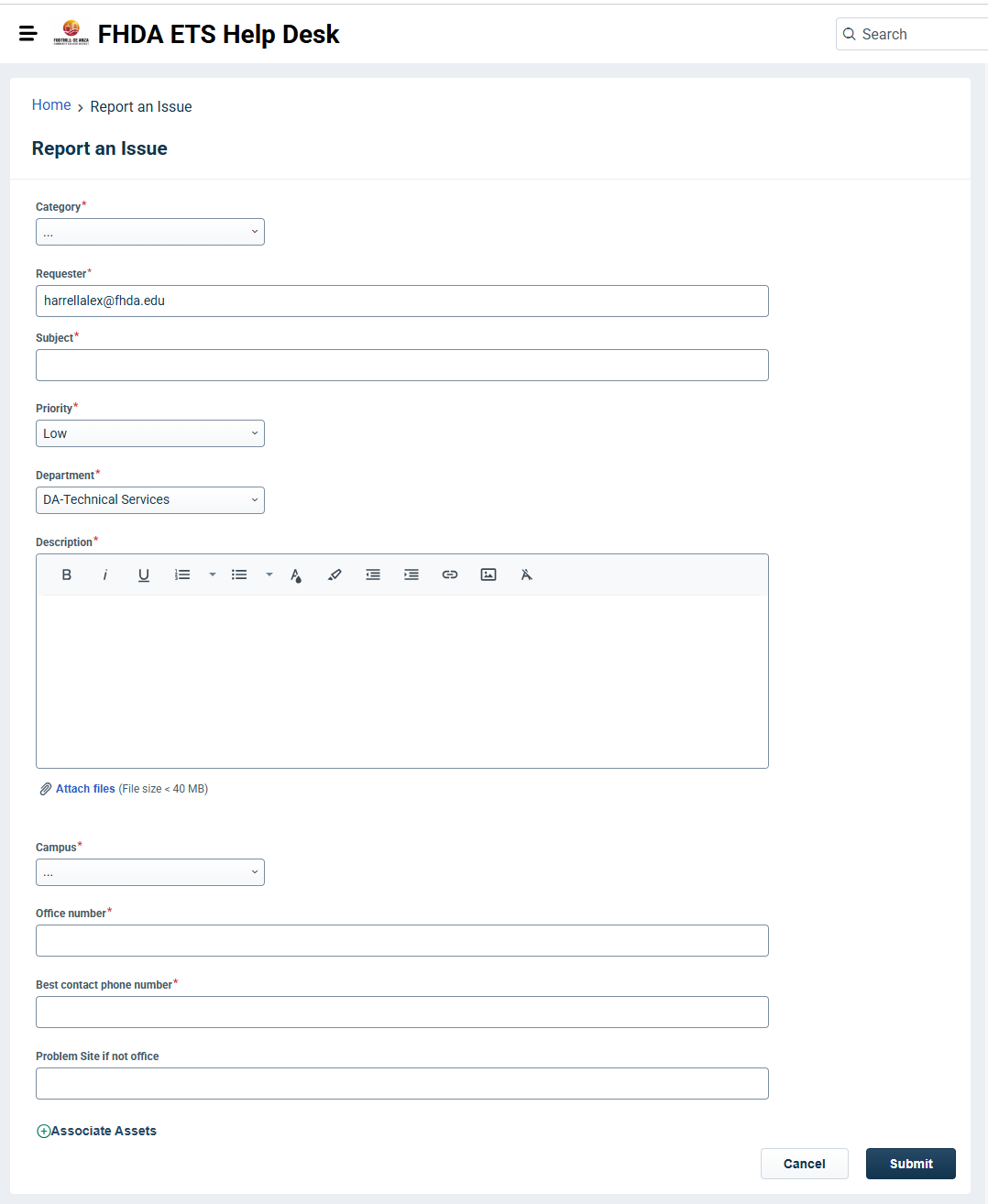
Fill out all of the fields and hit submit. A ticket will be created and routed to the proper support team. Any fields marked with a red star are required. If a field is not applicable, please enter NA.
Submitting a Ticket for Another Person
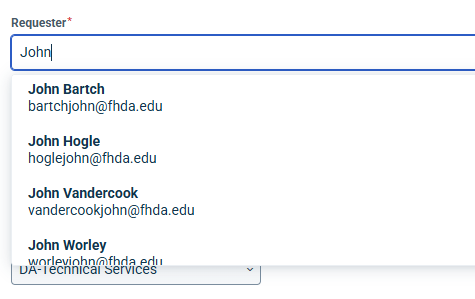
To submit a ticket for another person, start typing the name of the person you are submitting it for in the Requester box. A drop-down menu of District personnel matching the name you type will appear.
Viewing Your Tickets
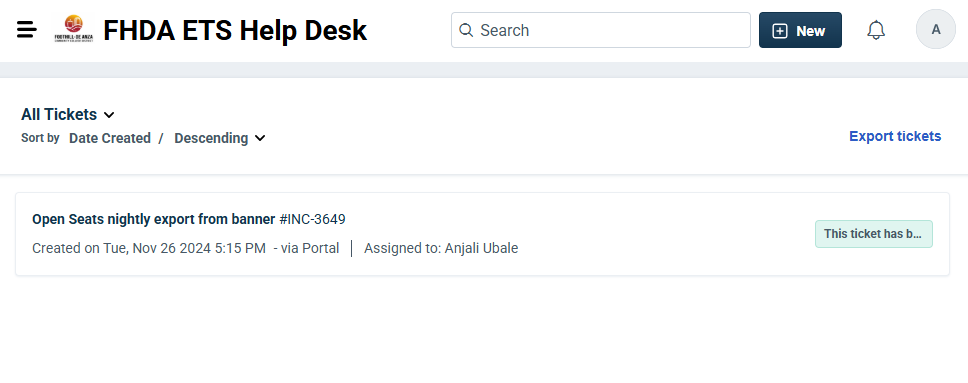
Once you create a ticket, it will appear as part of a list at the bottom of your home page, organized into tabs for Open tickets, Onboarding requests, and Offboarding requests.
Classroom Support Requests
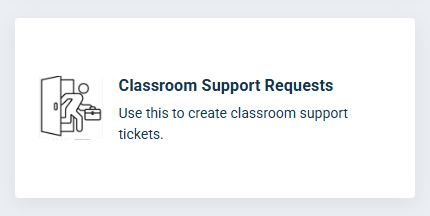
For issues that impact the classroom or instruction, click the Classroom Support Requests tile. This will open a ticket form for classroom support.
Classroom Support Form
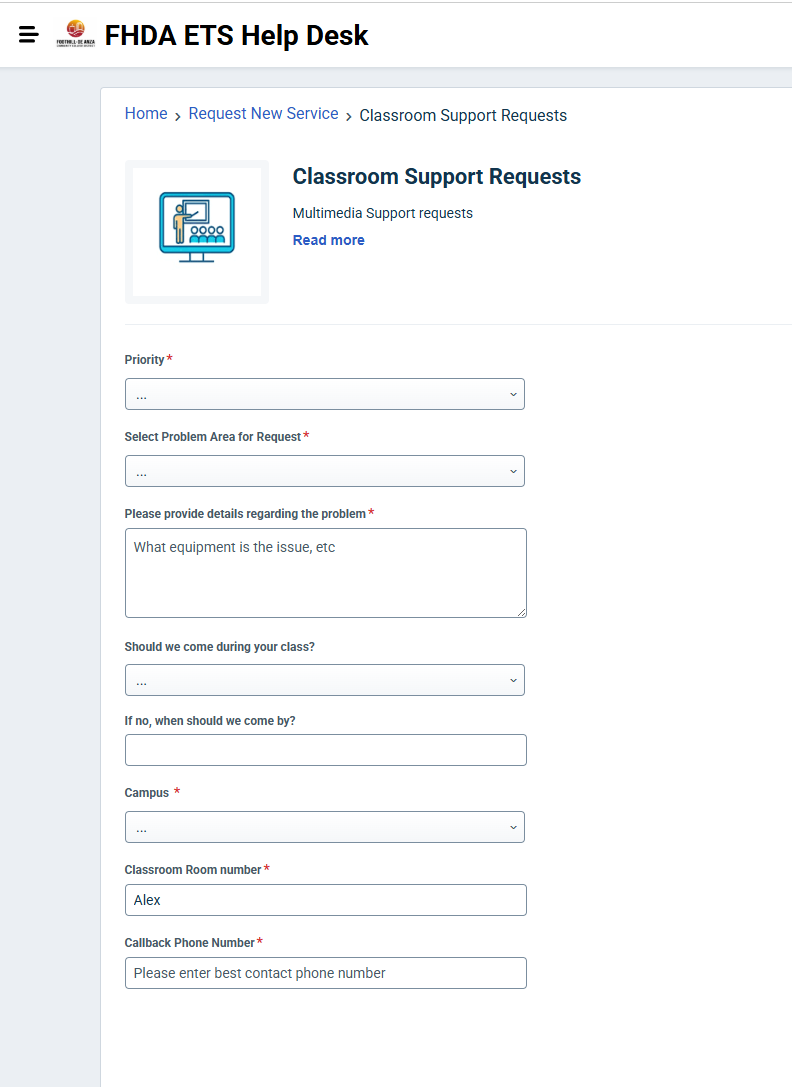
The Classroom Support form includes fields for Priority, Problem Area, problem details, whether you want support to come during your class, Campus, and Classroom Room number. Again, for non-applicable areas, type in NA.
Service Requests
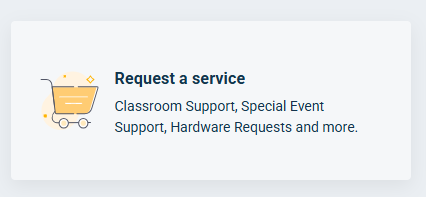
The Request a service tile sends you to the Service Catalog. Service Requests, as opposed to Incident tickets, are services requested from either ETS or Facilities.
This area is under development. If you have any ideas for service tiles, let the Call Center know.
The Service Catalog
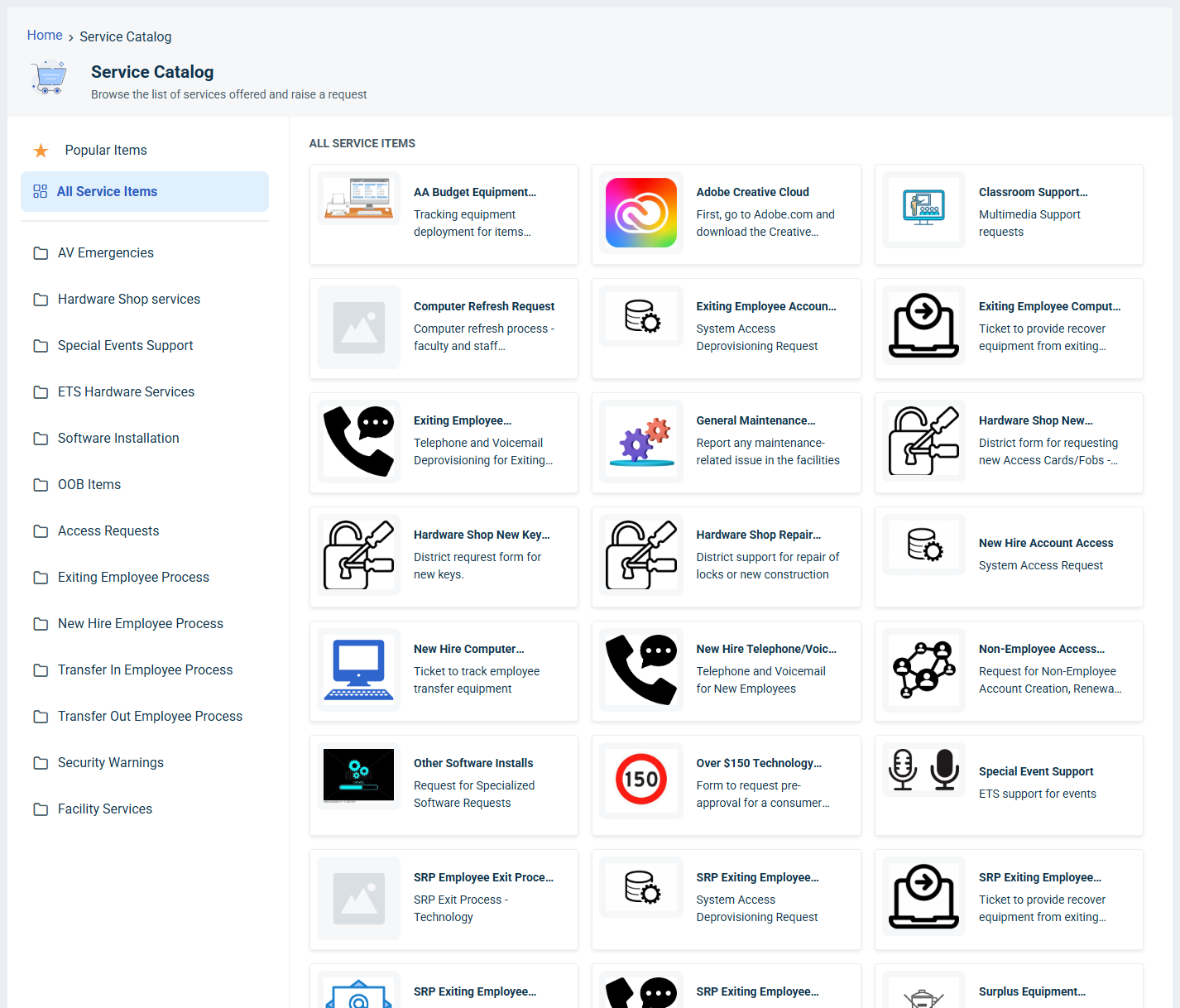
The Service Catalog includes categories such as AV Emergencies, Special Events Support, Hardware Provisioning, Software Installation, Application Access, Lock Shop services, New Hire Employee Process, and Transfer In Employee Process. Available items include Adobe Creative Cloud, Apple iMac, Classroom Support Requests, Keyboard, Microsoft Office, and Monitor.
Permission-Restricted Tiles
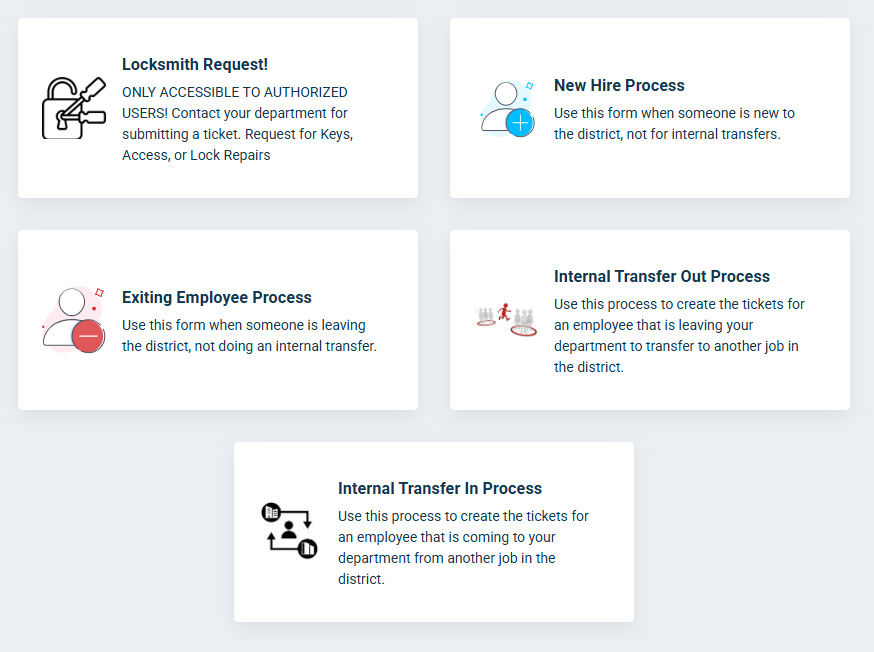
The following tiles are permission-restricted. Unless you are part of a District group with permission to submit these types of tickets, you will not see the forms.
New Hire Process
Use this form when someone is new to the District, not for internal transfers.
Exiting Employee Process
Use this form when someone is leaving the District, not when doing an internal transfer.
Transfer In Process
Use this process to create the tickets for an employee who is coming to your department from another job in the District.
Transfer Out Process
Use this process to create the tickets for an employee who is leaving your department to transfer to another job in the District.
Locksmith Request
Only accessible to authorized users. Contact your department for submitting a ticket. Used for requests for Keys, Access, or Lock Repairs.
For assistance, contact the ETS Call Center at +1 (408) 864-8324 or visit https://helpdesk.fhda.edu.